Notes
A Note is an editable page you and Mesh can both write on. Keep your lecture notes, worked examples, and explanations here for your next study session.
Create and organize Notes
Choose New note and a fresh Untitled note opens with the title ready to type over. Or ask Mesh for one — “Write that up as a Note” — and it creates the page, title and all.
- Export text in a row's menu downloads the writing as a plain text file.
- Deleting a Note can't be undone.
You can also just ask: Mesh renames a Note, and it can search and read any Note in the Workspace. Mesh can't delete a Note. Deleting always stays in your hands.
What a Note can hold
The editor saves on its own as you write — no save button to remember. Ask Mesh to change a page and it edits block by block instead of replacing what's there, and you can keep editing while it works. If you both change the same page at once, a warning appears above the editor and your writing stays in place until you choose Load Mesh's version or Keep mine.
Notes
Reaction types
The products tell you which kind you have. Balance by coefficients — never touch subscripts.
2H₂ + O₂ → 2H₂O
4 H and 2 O per side — balanced.
| Type | Pattern |
|---|---|
| Synthesis | A + B → AB |
| Decomposition | AB → A + B |
| Single replacement | A + BC → AC + B |
1. Balance: H₂ + O₂ → H₂O
2H₂ + O₂ → 2H₂O — count 4 H and 2 O per side.
2. Which type is 2H₂O → 2H₂ + O₂?
Worked examples: UML_Chemistry_Chapter4.pdf p.2–3.
Saved
- Formatted writing: bold and italic, lists, colors, and highlights. There is no heading — a short bold line is how a section gets its label.
- References to anything in the Workspace — type @ and pick.
- Images, either inline as the picture itself or as a compact pill.
- Collapsible sections, math, tables, and code blocks, which no toolbar button can make — Mesh writes those for you.
An Image, two ways
An Image can sit in a Note two ways: as a compact Reference pill inside a line of text, or as the picture itself. Pick one with @ and it arrives as a pill, and either form swaps for the other right where the Image already sits.
Try it. Point at the picture, then choose Show as reference.
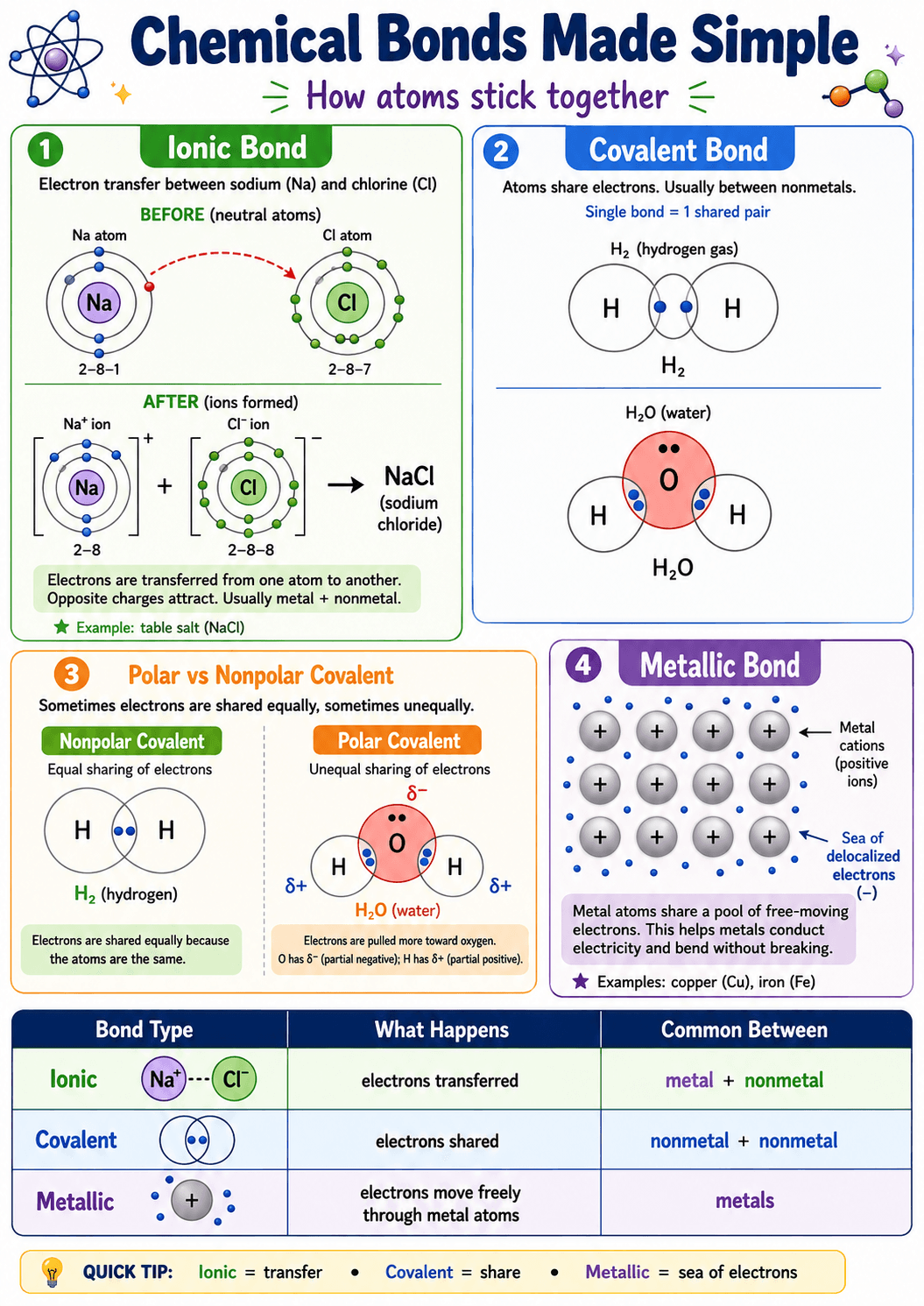
Ionic hands electrons over; covalent shares them. The picture keeps the three families side by side.
One Image, two presentations inside a Note: the picture in full, with its title and size underneath, or a Reference pill sitting in the line. Each one carries the control that switches to the other.
Tap the pill and Show image here swaps in the picture; on the picture, Show as reference swaps back, Go to image opens it in Images, and Remove takes it out of the writing without touching the saved Image.
Format the selection
The toolbar has the buttons below. Tap one to see what it does. In a narrow panel they fold into compact menus without losing any options.
Try it. Tap any control to see its choices.